Moviqo AI Logo Moviqo AI
Download for Free

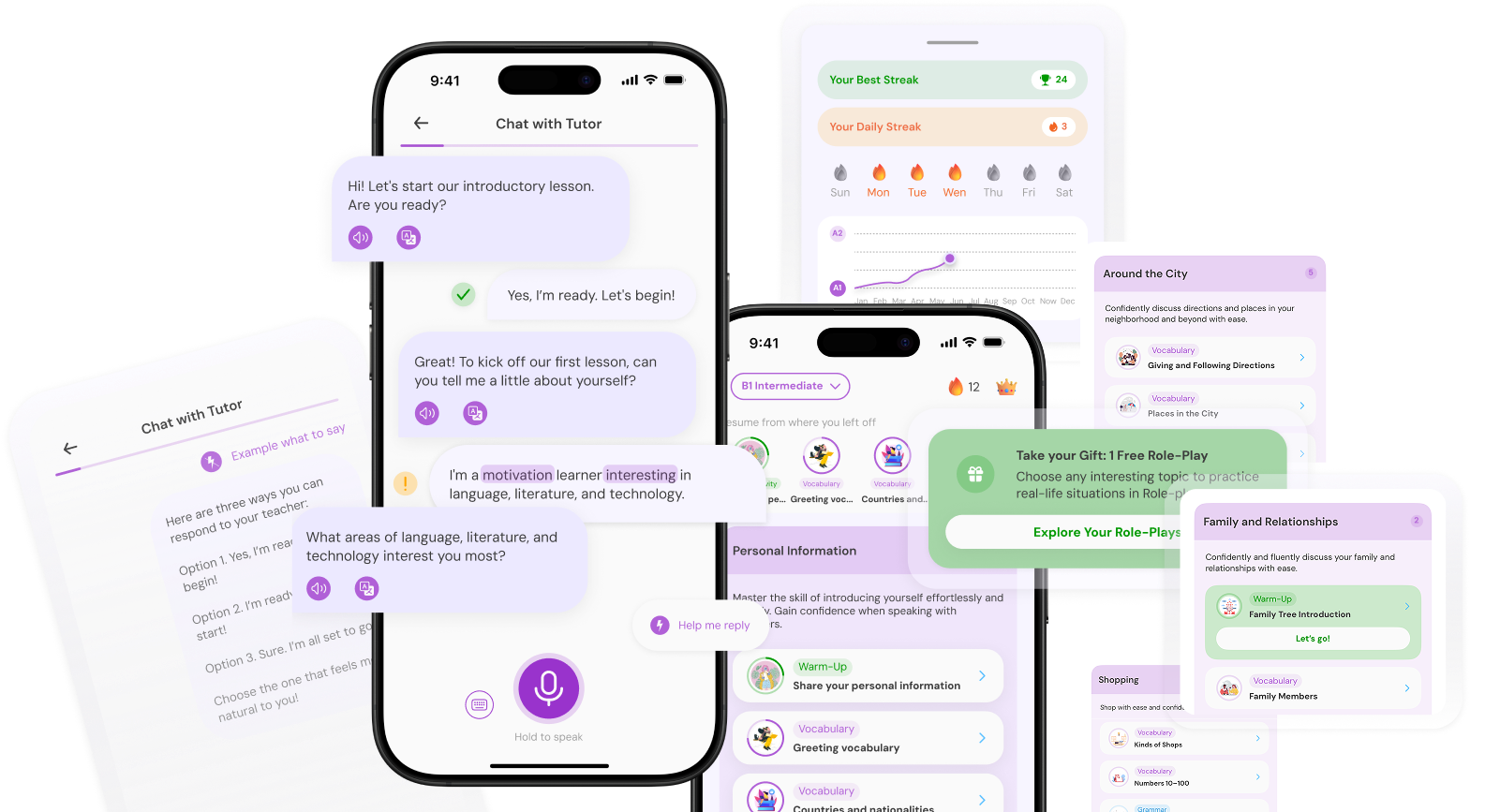
Your Moviqo AI Partner for Real Conversations

The English app that actually listens — and gets you talking

Moviqo AI App Screens

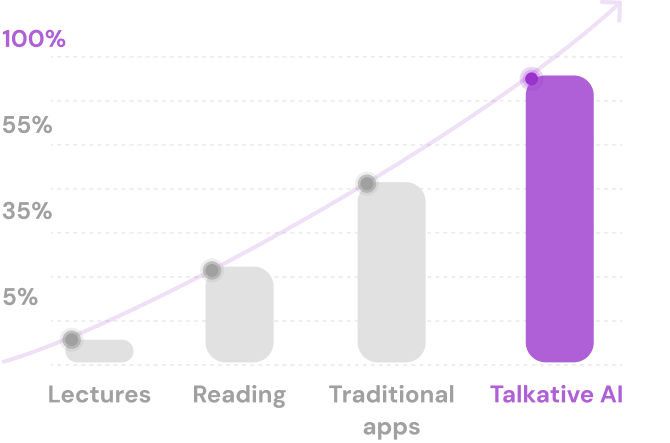
50x cheaper than a real tutor

What is Moviqo AI App

Interactive dialogues
with audio

Start Chatting

Unlock fluent English with dynamic, real-time conversations powered by AI. Chat instantly via text or voice, receive immediate corrections, and master natural dialogues as if you're talking
to a native speaker.
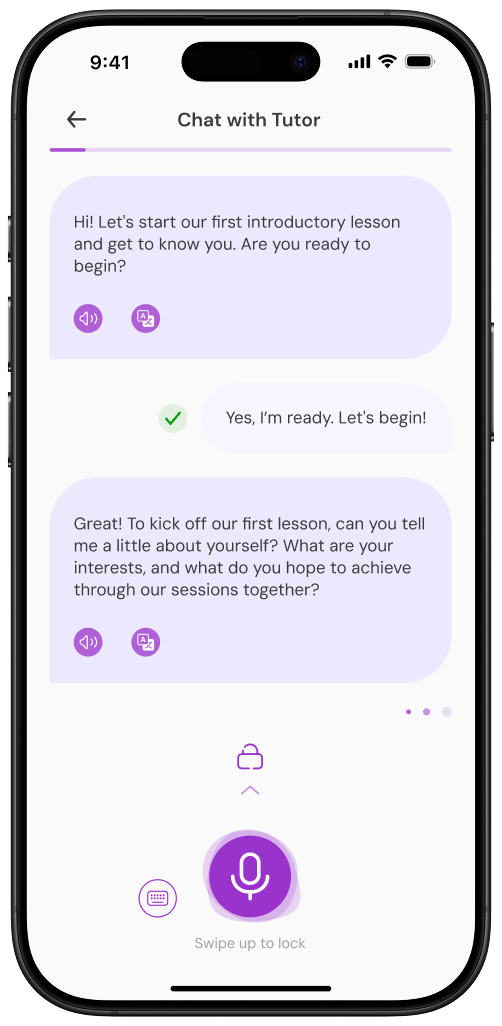
Phone showing chat interface

Pronunciation
feedback via voice
comparison

Test Your Voice

Master clear pronunciation with instant, detailed reports on every word you say. Our AI analyzes your voice, highlights where you need practice, and provides actionable tips to sound perfectly fluent. Your personal coach notices everything.

Progress tracking with visual insights

View Progress

See your English journey clearly. Easily track your skill level, review completed lessons, and follow a structured path of Grammar, Vocabulary, and Role-Play to guarantee consistent progress and motivation.

"Help Me Reply" AI assistant
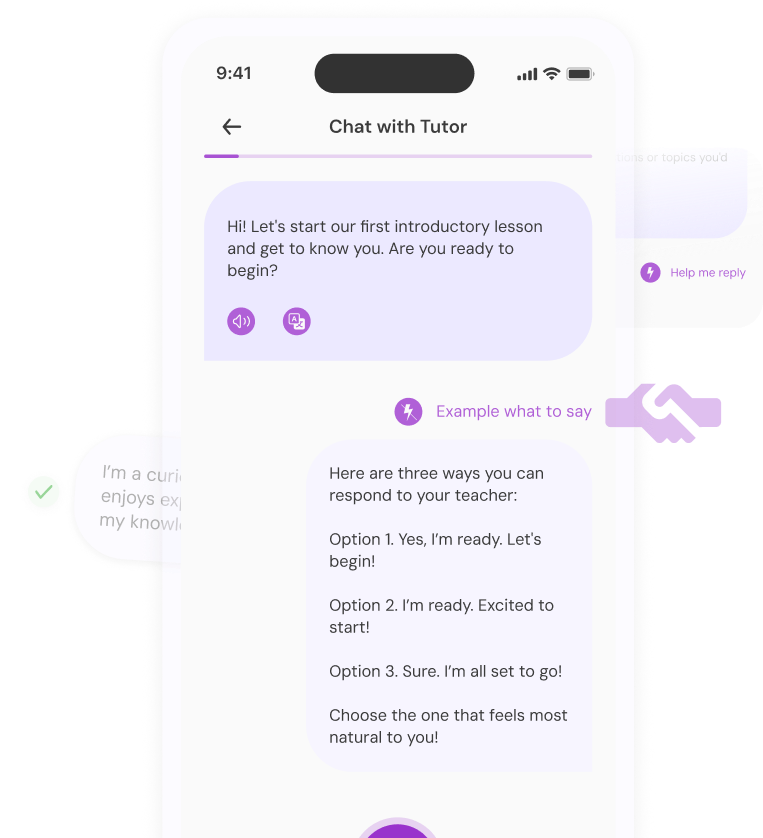
Help Me Reply AI assistant

Personal dictionary for full phrases
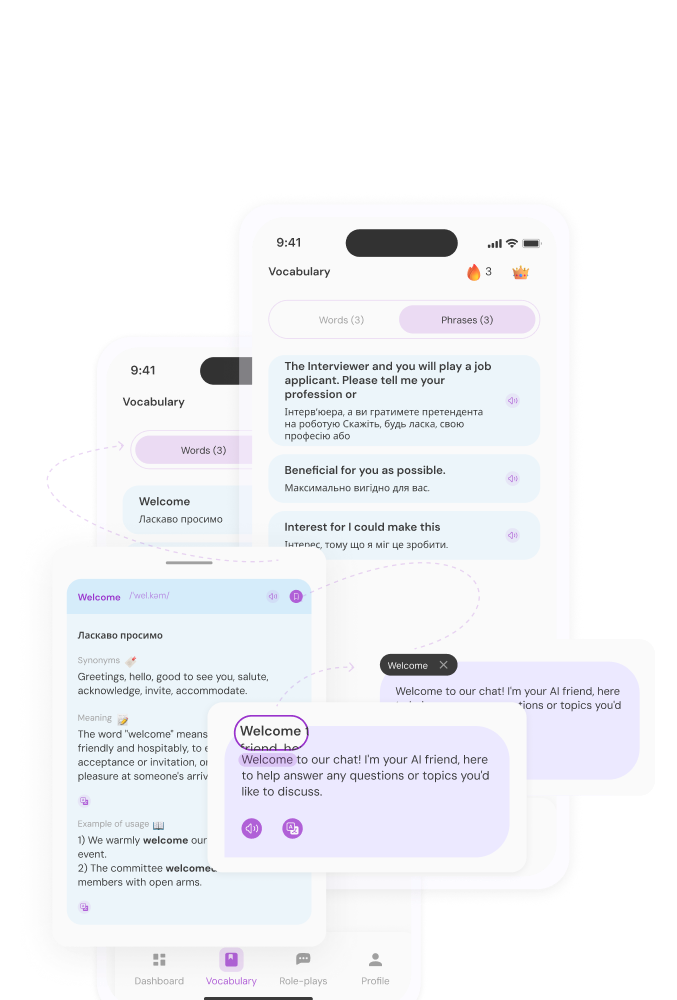
Personal dictionary for full phrases

Real-time translation
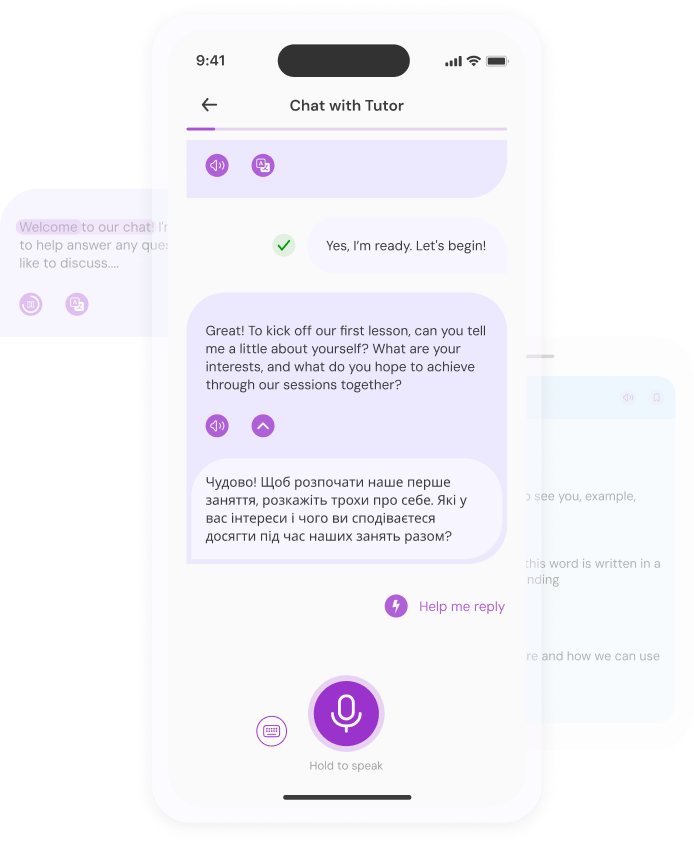
Real-time translation

What Our Users Say

Speak freely. Learn
confidently.

Learn by speaking, not just reading. Build confidence with every lesson.

Apple icon Download for Free
Graph illustration

Frequently Asked Questions

Account
How to create an account?
You can create your account on the "Profile" screen by tapping the "Sign up" button.
How to log in to my account?
If you have logged out of Moviqo AI or need to use Moviqo AI on another device, you can log in using the same credentials you used on your first sign-up. To switch your account, please Log out on the "Settings" screen by tapping the "Log out" button and then log into the correct account on the "Log in" screen. If you don't have an account yet, please look at the question above.
How to delete my account?
To delete an account, please press the "Delete Account" button by tapping on "Profile" and then the "Settings" icon. The account will be deleted within 24 hours. Please note that deleting the account will not cancel the subscription.
Subscription
I paid for the subscription, but I don't have full access. What should I do?
If you've purchased a subscription and it doesn't appear in your account, follow these steps to try and resolve the issue: Open the app, navigate to "Profile," tap on the "Settings" icon, and select the "Restore Purchase" button. If the problem still exists, please don't hesitate to contact us.
My payment was rejected
1. First, try purchasing a subscription once again. 2. If you still can't make the purchase, change the payment method in your iPhone Settings app and try to complete the purchase. 3. If you still can't make the purchase, message us via Support, and we will try to assist.
How can I get information about my subscription?
To get detailed information about your subscription, including the start and end dates, you can follow these steps: Open the App Store app on your device and tap on your profile picture at the top right. Then, tap "Subscriptions" to view the details of your active subscriptions, including the start and end dates. Please note that the respective app stores manage the subscription information (App Store for iOS and Google Play Store for Android), so it's best to check directly within their platforms for the most accurate and up-to-date information.
Can I get a free trial?
Yes, we offer a one-time, 7-day free trial for new users. This free trial is available only once per person, regardless of how many accounts they create. When you use the app for the first time, you will see the option to start your 7-day free trial. Once the free trial period ends, your subscription will automatically begin, and payments will be processed and renewed until you choose to cancel. By activating the free trial, you agree to the above payment terms. Please note that if you have previously used the free trial on any account, you will not be eligible for another free trial period. In such cases, you will not see the free trial option within the app, and your paid subscription will begin immediately upon upgrading, even with a new account.
How does the free trial work?
The free trial will be active for 7 days, at which point you will be automatically charged the full subscription price (if you didn't cancel the subscription during the trial). Please cancel the trial at least 24 hours before it ends to avoid any charges through Apple. Please note that if you have previously used the free trial on any account, you will not be eligible for another free trial period. In such cases, you will not see the free trial option within the app, and your paid subscription will begin immediately upon upgrading, even with a new account.
Do you have a family subscription?
Currently, we do not have a family subscription that allows using different profiles within a single subscription.
Do you have a monthly subscription?
Currently, we do not have monthly subscriptions.
What is the difference between different Premiums? Which currency is used?
We have special offers available for some countries. Prices may vary based on your location, promotions, or discounts. Check the available options in your region. Prices are in your local currency. All premium subscriptions offer the same features and benefits with one price tier.
How to change the subscription plan?
1. Firstly, you should cancel your subscription in AppStore. Open the App Store app on your device and tap on your profile picture at the top right. Then, tap "Subscriptions" to view the details of your active subscriptions, including the start and end dates. 2. Then, after your payment period ends, you can start another plan in our app.
How can I manage my subscription?
Open the App Store app on your device and tap on your profile picture at the top right. Then, tap "Subscriptions" to view the details and manage your active subscriptions.
Other questions
The lesson stopped working (chat stopped, froze)
1. Please try to reload your phone. 2. If reloading the phone doesn't help, please skip the frozen lesson and start the next one.
The app starts freezing and glitching
Please try to reload your phone.
My microphone isn't working
1. Activate Microphone Access: ◦ Open the 'Settings' app on your iPhone. ◦ Scroll down to find the list of installed apps and select 'Speak.' ◦ Ensure that the toggle next to 'Microphone' is switched on. This grants the Speak app permission to access your iPhone's microphone, which is crucial for voice recognition features. 2. Verify Content & Privacy Settings: ◦ Go back to the main 'Settings' menu and tap on 'Screen Time.' ◦ Navigate to 'Content & Privacy Restrictions.' You'll need to enter your Screen Time passcode if these restrictions are enabled. ◦ Within 'Content & Privacy Restrictions,' go to 'Allowed Apps.' ◦ Make sure that both 'Microphone' and 'Speech Recognition' are permitted. This ensures that no system-wide settings are blocking the Speak app from utilizing voice recognition capabilities.
Where can I find feedback on my messages?
You can use instant feedback on your messages by tapping the message you sent. Instant feedback provides pronunciation scores and grammar corrections with explanations.
How to save words and phrases to the dictionary?
To save a word, tap on any word from Al Tutor message and tap on the bookmark icon in the top right corner of pop up window to save it to your dictionary. To save a sentence, hold on to the first or last word and slightly drag to the left or right to highlight the whole sentence.
How can I change the difficulty level?
1. On the "Lessons" screens, click on the English level at the top of the screen: "Elementary, Beginner, Intermediate..." and choose the level that best suits you. 2. Click on "Profile," then find the "Settings" button. In the "Settings," choose the level that best suits you.
Can I log in from a different device?
You can log in via your iPad or iPhone with the same Apple ID account.
Do you provide other languages to study?
Unfortunately, for now, we only offer English learning, but we are working on adding other languages.
Is the app working on a PC/tablet?
Our app is primarily designed for mobile devices. While you can technically access it from a computer or tablet, please remember that it may not work as smoothly as on a mobile phone. To have the best experience and access to our app's features, we recommend using it on a mobile device.
How to contact us?
If you have any questions, suggestions or feedback, you are welcome to contact us: contact@talkative-ai.com